
Flow Board
The Flow Board is a kanban-style view of your Project Manager Tasks, organized into columns by state. Switch to it by clicking Flow Board in the toolbar.
Columns
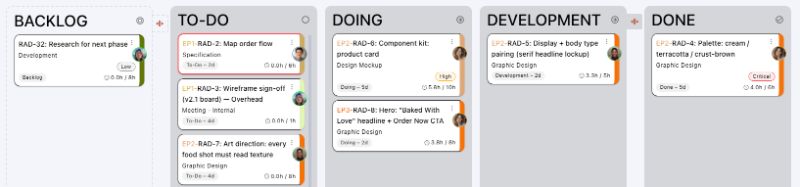
Tasks are distributed across the following columns, left to right:
Backlog — Tasks that have been created but are not yet planned. This column has a dashed border and only appears when the Backlog feature is enabled in organization settings or the project already has Backlog Tasks. When it is empty, it is hidden unless its stages are spread.
To-Do — Tasks that are planned and ready to start, but have no time logged against them yet.
Doing — Tasks that have at least one time entry logged against them. Work is in progress.
Done — Tasks that have been manually marked as complete.
Archived — Tasks that have been archived. This column only appears when archived Tasks exist and the archive toggle in the toolbar is active. Archived cards are shown at reduced opacity.
How Tasks Move Between Columns
Tasks do not move between columns by dragging. Their state changes based on specific actions:
You cannot drag Tasks between columns on the Flow Board. State transitions are driven by time entries and explicit actions.
Task Cards
Each Task appears as a card.
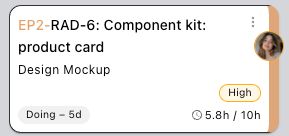
The status labels reflect where a Task is in its lifecycle:
Backlog — not yet planned. If the Task is in a Backlog stage, the stage name is shown instead.
To-Do — planned but not yet started.
Doing — work is in progress. If the Task is in a Doing stage, the stage name is shown instead.
Done — the Task has been marked as done.
Archived — the Task has been archived.
If a Task is blocked, its card has a red border on three sides to draw attention.
Interacting with Tasks
Click any card to open the Task Panel. For active Tasks (Backlog, To-Do, Doing, Done), the dialog lets you view and edit the Task. For archived Tasks, it opens in read-only inspect mode.
Each card also has a three-dot menu button in its top-right corner that opens the same dialog.
Stages
Stages are sub-groups within the Backlog and Doing columns. When stages are enabled in organization settings, they are created and edited under Settings > Stages, where you can add, edit, and delete stages and set each stage's type (Backlog or Doing) and status (Active or Archived). To move a Task into a stage, open the Task Panel and pick the stage under Transition To. The stage selector is not available for Done or archived Tasks.
The stages each project uses, and their order, are chosen under Stages in the project's settings.
A spread/collapse button or on the tab at the right edge of the Backlog and Doing columns lets you expand/collapse that column's individual stages. When spread, each stage becomes its own column, and Tasks with no stage stay in the Backlog or Doing column. When collapsed, all Tasks in that state appear in a single column.
Stages require the Enable Stages setting to be enabled in Organization Settings > Project Manager. The Backlog column additionally requires the Enable Backlog setting to be enabled.
Configuration
Click the gear at the far right of the filter bar to open the Flow Board settings. There is one option:
Show Empty Stages — when on, stage columns are shown even when they contain no Tasks. When off, empty stage columns are hidden.