
Signing In
The sign-in page is your entry point to AbleTime. Enter your credentials to access your organization’s workspace.
The Sign-In Page
The page is split into two panels. On the left (desktop only), a welcome message are displayed. On the right, the sign-in form appears.
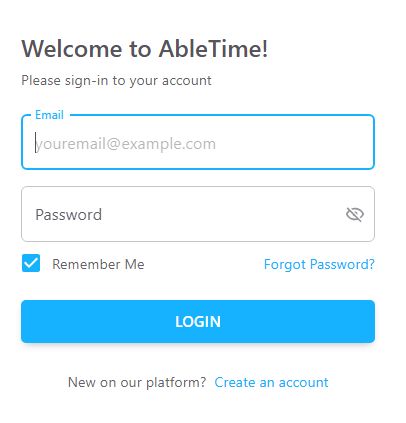
Enter your email address in the Email field (placeholder: “youremail@example.com”) and your password in the Password field. Click the eye at the end of the password field to toggle between showing and hiding your password.
Below the fields, a Remember Me checkbox is selected by default. The Forgot Password? link sits to the right.
Click Login to sign in. If your credentials are correct, you are redirected to the Home page.
Below the form, a link reads New on our platform? followed by Create an account, which takes you to the registration page.
Sign-In Errors
If something goes wrong, an alert appears above the form:
Invalid email or password — the email or password you entered is incorrect.
Your account is not currently active — your account has been deactivated. Contact your administrator.
This account has been suspended — your organization’s account has been suspended. Contact customer service.
Too many attempts — you have exceeded the login attempt limit. Wait the indicated number of minutes before trying again. After repeated failures, the account is locked for 30 minutes.
If you see a message that your email is not verified, check your inbox for a verification email. A Resend button appears in the alert to send a new verification email.
Resetting Your Password
Click Forgot Password? on the sign-in page to open the password reset page. The heading reads Forgot Password with the instruction to enter your email to receive reset instructions.
Enter your email in the Email field and click Send Reset Link. If the email exists in the system, you receive an email with a six-digit verification code. A link at the bottom reads Remember your password? with Back to login to return.
On the reset page, enter your email and the six-digit code from the email. Click Verify Code.
Once verified, two password fields appear: Password and Confirm Password, both with visibility toggles. The password must meet the same requirements as during account creation:
At least 10 characters
At least one lowercase letter
At least one uppercase letter
At least one number
At least one special character
Click Update Password. On success, a confirmation message appears and you are redirected to the sign-in page after a few seconds. You can also click Go to Login immediately.
After Signing In
After a successful login, you land on the Home page. From there, use the sidebar to navigate to any area of the application.