
Creating Your Account
There are two ways to access AbleTime: creating a new account, or accepting an invitation from your organization. Both paths end with verifying your email and setting a password.
Create an Account
First, on the AbleTime sign-in page, click Create an account. Once there, you enter your email address in the Email field. Below the field, check the box to confirm you have read and agree to the terms and conditions and privacy policy. Both documents are available as links that open in a modal — you can read them without leaving the page.
Note that you do not require a credit card to create an account or start your free trial.
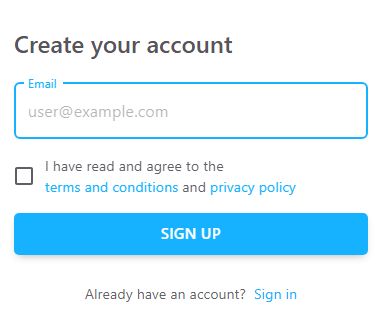
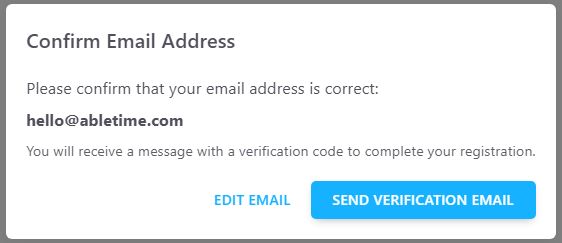
Next, click Sign up. A confirmation dialog appears asking you to verify your email address is correct. The dialog shows the email you entered and a note that you will receive a verification code. Click Send Verification Email to proceed, or Edit Email to go back and correct it.
If the email is valid and not already registered, you receive a verification email. The page displays a confirmation message. Click Return to Login or follow the link in your email to continue.
Verifying Your Email
The verification wizard begins a three-step progression: Verify Email, Set Password, and Done!.
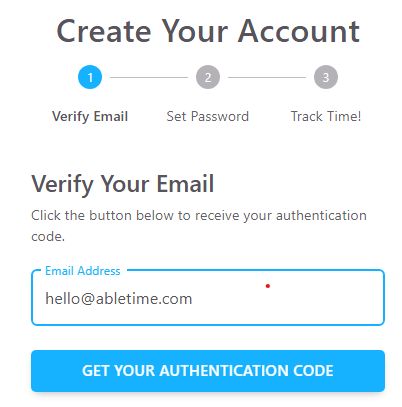
On the first step, your email address appears in the Email Address field. If you arrived via the link in your email, the address is pre-filled and cannot be edited, and the code fields appear right away. Otherwise, enter your email address and click Get your authentication code to request a six-digit verification code by email.
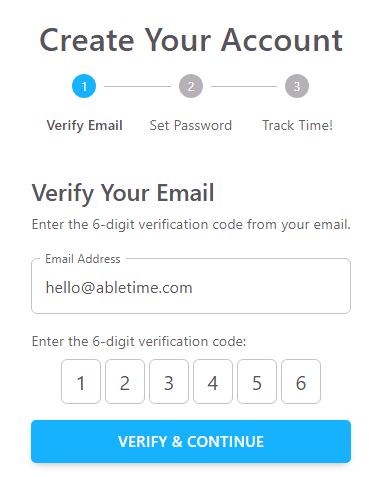
Once the code arrives, six individual input fields appear below the email. Enter the six-digit code — you can type each digit or paste the full code at once. Click Verify & Continue.
If your code has expired or you did not receive it, you can request another code.
Setting Your Password
On the second step, enter a password in the Password field and confirm it in the Confirm Password field. Both fields have a visibility toggle (eye icon) to show or hide the password text.
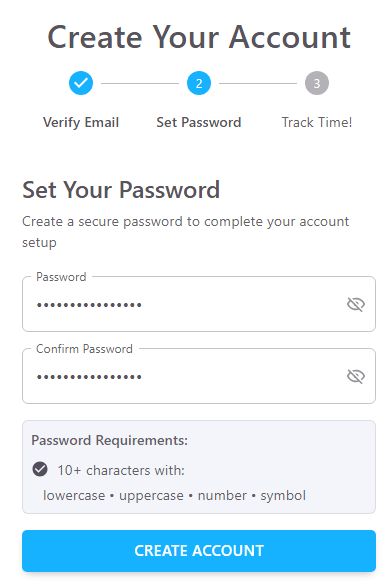
Your password must meet all of the following requirements, listed on screen under Password Requirements:
At least 10 characters
At least one lowercase letter
At least one uppercase letter
At least one number
At least one special character
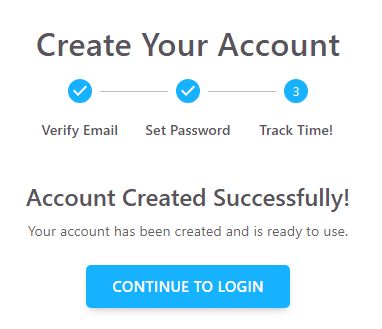
Click Create Account to finish. The final step confirms your account has been created with the message "Account Created Successfully!" and a Continue to Login button that takes you to the sign-in page.
You should now have full access to AbleTime. If you did not use a credit card to create your account, you will automatically start a free, 30-day Trial.
Accepting an Invitation
If someone in your organization has invited you, you receive an email with a link. Clicking it opens a page titled Complete Your Registration.
The process is: enter or confirm your email address and click Get your authentication code, enter the six-digit code from the email and click Verify Code, then set your password and click Complete Registration. If the code is not accepted, a Request New Code button appears so you can request a fresh one.
If your organization's payment method needs an extra confirmation before your account can be activated, the page asks you to click Confirm to complete your account activation.
Once complete, the page confirms your registration and redirects you to the sign-in page after a few seconds, or you can click Go to Login immediately.