
Dependencies
Dependencies let you link Time Flow Tasks in a parent-child relationship. A dependent Task (the child) is linked to a parent Task, expressing that the child follows from or relies on the parent. This page covers how to create, view, and manage dependencies, and how they appear on the Timeline.
Setting a Dependency
Open a Task's dialog and look for the Dependency field in the sidebar. Click the dropdown (labelled Select parent task...) and choose a parent from the list of eligible Tasks. Tasks in the To-Do, Doing, or Done state can be selected as a parent; archived Tasks are not listed. Each option shows the Task's Epic reference (if it has one), its reference, and its title.
When a parent is set, a confirmation toast appears: Dependent upon "TF-5: Build API" (showing the parent's reference and title).
To change the parent, select a different Task from the same dropdown. To remove the dependency entirely, select Select parent... (the first option in the list).
You can only set or change a dependency when the Task is in the To-Do state. Once a Task is in progress (Doing) or completed (Done), the dependency field is read-only, and it is hidden entirely if no parent was set.
Dependency Arrows on the Timeline
On the Timeline, each dependency is visualized as a curved arrow running from the parent bar to the child bar. The arrow uses a colour gradient: it starts in the parent's category colour and ends in the child's category colour. An arrowhead at the child end indicates direction.
Arrows update automatically as you move or resize bars. Tasks are ordered on the grid so that a parent appears above its children where possible.
Dependency Chains
When Task A is the parent of Task B, and Task B is the parent of Task C, they form a chain: A, B, C. Chains matter when you drag or resize a Task on the Timeline. By default only the Task you move changes. Hold Shift while dragging or resizing to shift the whole chain by the same amount; the affected arrows are highlighted while you drag. Locked Tasks are not shifted.
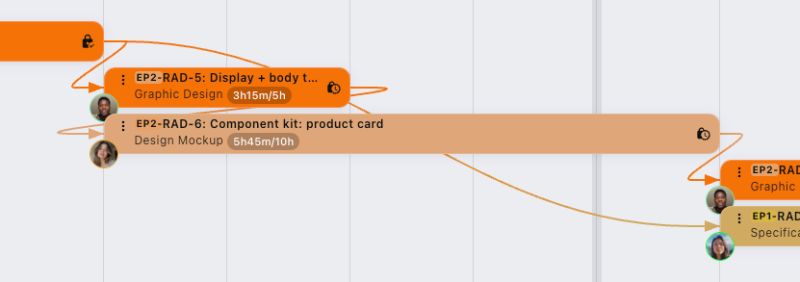
If a move would affect locked Tasks, or would push Tasks in the chain past a milestone, a confirmation dialog appears listing every affected Task and any milestones that would be violated. You can choose to proceed or cancel.
Confirmation Dialog
The dialog is titled Confirm Move with Locked Items, or Milestone Conflict when milestones would be violated. It shows:
A list of affected Tasks, with a lock next to any that are locked.
A list of violated milestones (if any), highlighted with a flag and a warning message: This move will push tasks past the following milestone(s).
Two buttons: Cancel and Confirm.
Chain Bands on the Timeline
Chain Bands are a separate visual feature that groups Tasks. When enabled in the Timeline configuration, each Epic's Tasks are enclosed in a semi-transparent coloured band. This makes it easy to see which time ranges an Epic occupies and how its Tasks are distributed.
This reinforces the idea that an Epic is a "chain" of related work. Control their visibility and opacity with the Chain Bands switch and the Chain Band Opacity slider in the Timeline configuration (see the Timeline page).
Lock States and Dependencies
Lock rules affect whether a Task will move or not when parent tasks would otherwise shift them. When locked, either manually or by design, a Task will never move.
Dependencies and Merging
A Task that has other Tasks depending on it cannot be used as a merge target. This prevents breaking the dependency chain. See the Splitting and Merging Tasks page for details.
Removing a Task from the Timeline
When you remove a Task from the Timeline (clearing its dates), its dependency parent is also cleared automatically.