
Timeline
The Timeline is a Gantt-style view that displays your Time Flow Tasks as horizontal bars on a calendar grid. Switch to it by clicking Timeline in the toolbar. Tasks can be dragged, resized, and scheduled directly on the grid.
Timeline is a Pro feature. If your plan does not include it, the Timeline button does not appear in the toolbar, and the view shows an Upgrade to Pro card instead.
Layout
The Timeline is split into two areas:
Task Board — a collapsible sidebar on the left showing your Tasks as cards.
Gantt grid — the main calendar area where Task bars, milestones, and dependency arrows are drawn.
Click the chevron button between the two areas to collapse or expand the Task Board.
Task Board Sidebar
The Task Board lists Tasks in two collapsible sections:
Unscheduled — Tasks that do not yet have a start and end date on the grid. Drag a card from this section onto the grid to schedule it.
Scheduled — Tasks that already have dates. Click a card to scroll the grid to that Task. Each card shows the Task's duration in days (e.g. 5d).
A search field at the top of the Task Board filters both sections by title or reference, and each section has its own category dropdown to help locate Tasks quickly.
The Grid
The grid header shows month markers across the top and individual day columns below. Each column shows the day of the week and the date number. The first day of each month is displayed in bold.
Today's column is highlighted with a subtle colour overlay so you can orient yourself quickly. When the page loads, the grid automatically scrolls to today's date (or to a specific date if you arrive from a link).
When the organization setting Exclude Weekends From Durations is enabled, weekend columns are removed from the grid entirely. Boundary stripes indicate where weekends would fall.
You can pan the grid by clicking and dragging on an empty area.
Two magnifier buttons in the filter bar, Narrower day columns and Wider day columns, change the width of the day columns. Three widths are available, and the day at the centre of the view stays in place when you zoom. The zoom level is remembered for your account.
A thin bar with a chevron sits beneath the filter bar. Click it to collapse the filter bar and the toolbar row so the grid gets more room; click it again to bring them back.
Task Bars
Each scheduled Task appears as a coloured bar on the grid. The bar colour matches the Task's Category.
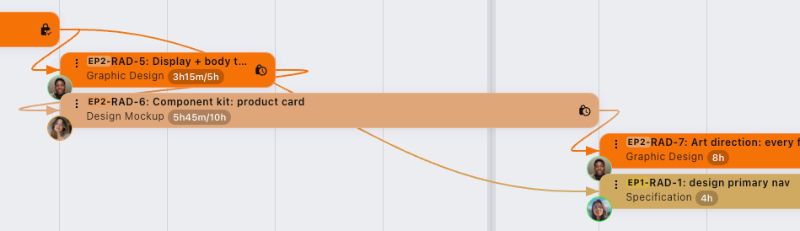
A time chip showing logged time against the estimate — with colour coding when the Task approaches or exceeds its estimate (orange at 80 percent, red at 125 percent). A Task with no estimate shows a red chip reading 0!. State icons on the right: a lock-clock for in-progress Tasks, a lock-check for completed Tasks, an archive-lock for archived Tasks, and a plain lock for manually locked Tasks.
Click the three-dot on a bar to open the Task edit dialog.
Ghost Bars

When Ghost Bars are enabled in the Timeline configuration, a semi-transparent dashed bar appears behind the actual bar. This ghost represents the original projected schedule (plan). When reality drifts from the plan, the gap between the ghost and the solid bar makes the variance visible at a glance.
Backlog Bars
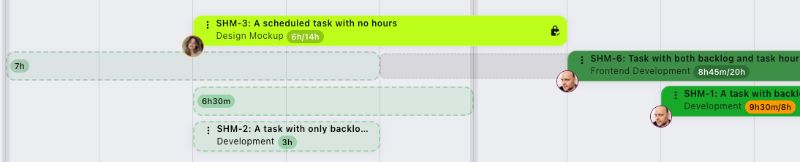
Backlog Tasks that have time entries logged against them appear on the grid as a special bar style — transparent with a dashed outline. They are not draggable or resizable. Their position is derived from the dates of their time entries.
Assignee Avatars
Click the Avatars button in the toolbar to show who each Task is assigned to. When it is on, every Task that has an assignee shows a small circular avatar — the person's photo, or their initials if they have no photo — in the bottom-left corner of the bar. Tasks with no assignee show nothing. The toggle is off by default and is remembered for your account.
Milestones
Milestones appear as coloured vertical lines spanning the full height of the grid, with a diamond marker at the top. Click any date cell in the header to create a new milestone on that date.
When a milestone has a Cycle Start Date, a shaded band stretches from the cycle start to the milestone date, visualizing the cycle period. The cycle can be resized by dragging the left edge of the milestone bar.
Drag a milestone's diamond marker to move it to another date. Click the pencil icon beside the milestone's title to open its edit dialog, where you can change the title, colour, date, cycle, and other properties. A locked milestone shows a lock icon on its title and cannot be dragged. For a full overview, see the Milestones and Cycles page.
Dependency Arrows
When Tasks have parent-child dependencies, curved arrows are drawn from the parent bar to the child bar. Each arrow fades from the parent Task's category colour into the child Task's category colour. See the Dependencies and Chains page for details on creating and managing dependencies.
Overhead Bar
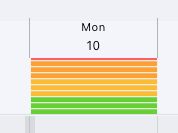
When enabled, the Overhead Bar sits just below the grid header. It shows a vertical bar chart for each day where time has been logged. The bars represent the proportion of general (non-targeted) time versus targeted Time Flow Task time on that day.
A day with 100 percent targeted time shows no bar segments.
As general time increases, more segments light up — green for low overhead, yellow and orange for moderate, red for high.
Hover over a day to see the exact split: targeted hours, general hours, and an overall effectiveness percentage.
Click a day to open the breakdown dialog.
The Overhead Bar is a quick visual check on where your time is going each day. A persistently high bar suggests that a high percentage of time is being spent on non-Task work. The Work, Overhead and Flow guide discusses strategies for keeping Overhead visible and under control.
Chain Bands
Chain Bands are semi-transparent coloured bands that group Tasks by Epic on the grid. When enabled, each Epic's Tasks are visually enclosed in a band matching the Epic's colour. This gives a high-level picture of which Epics occupy which time ranges. The opacity of the bands is adjusted with the Chain Band Opacity slider in the Timeline configuration .
Lanes
Lanes turn the bottom of the Timeline into a row for each person, so you can see how much work is stacked on every team member, day by day — and across more than one project at once. Click the Lanes button in the toolbar to open a small panel, and turn on Load Lane to switch them on. The same panel is where you choose how the lanes behave.
Capacity and Actual
The lanes panel has two modes, selected with the Capacity / Actual toggle:
Capacity — each day cell shows the scheduled hours assigned to that person, split into coloured segments by capacity type. A daily total above seven hours is shown in bold red so over-allocation stands out. Past days are dimmed.
Actual — each day cell shows the time that person actually logged. Weekend time is added beneath the cell as a small +X.X w/e note, and a week-total row runs along the bottom. Upcoming days are dimmed.
Hover any cell to see the full breakdown for that day.
Choosing projects
Lanes total up work across whichever projects you select in the Lanes panel, not just the one you are currently viewing. This lets you see a person's full load even when their time is spread across several projects. If you select no projects, or none of the selected projects have any hours, the lanes panel stays hidden.
Expanding a person
Each lane is headed by the person's name and avatar, with a red badge when they have overdue hours. People are listed alphabetically. Click a name to expand it into per-project sub-rows showing how their hours split across projects; in Actual mode each sub-row also shows its total. Click the name again to collapse it.
Resizing the panel
The lanes panel shows three rows at a time by default. Drag the handle at the top of the panel up or down to show more or fewer rows. It also grows on its own when you expand a person and there is not enough room.
Lanes are read-only. You cannot drag a Task from one lane to another — a lane reflects who a Task is assigned to, so to move work to someone else you change the Task's assignee from its edit dialog. Dragging a bar on the grid above only changes its dates.
Your lane settings — on or off, the mode, the chosen projects, and the panel size — are remembered for your account.
Scheduling and Moving Tasks
There are several ways to place and adjust Tasks on the Timeline:
Drag from the Task Board — drag an unscheduled card from the sidebar onto the grid to set its start date. If the Task already has time entries, it will snap to the actual start date instead.
Drag a bar — move a bar left or right to change its date range (subject to lock rules ... see below).
Resize edges — drag the left or right edge of a bar to extend or shorten it (subject to lock rules).
Moving a chain with Shift
Hold Shift while dragging a bar or resizing its right edge to move the Task's dependent Tasks along with it. Locked Tasks stay where they are and are not shifted. While Shift is held, the Tasks that will move glow, and so do the arrows between them. If Shift is not held when you release, only the Task you are holding moves.
Lock Timeline
Click the lock icon in the filter bar (Lock Timeline) to freeze the layout. While the Timeline is locked, bars and milestones cannot be dragged or resized, and cards cannot be dropped from the Task Board. Click it again (Unlock Timeline) to release it. The lock is remembered for your account.
Lock States
How much you can move or resize a bar depends on its lock state:
Done — fully locked. The bar cannot be moved or resized.
Doing (in progress) — the left edge is locked (you cannot move the start date backwards) but you can extend the right edge to push the end date forward.
Manually locked — fully locked via the lock toggle on the Task. No movement or resizing is allowed until unlocked.
Default (unlocked) — fully unlocked. The bar can be moved and resized freely from both edges.
Dependency and Milestone Warnings
When you move or resize a Task that has child dependencies or is near a milestone with dependency conflict detection enabled, a confirmation dialog may appear. It lists the affected Tasks and any milestones that would be violated by the change, and asks whether to proceed.
Timeline Configuration
Click the gear at the far right of the filter bar to open the Timeline settings. The following options are available:
Flow Board — show or hide the Task Board sidebar on the left.
Ghost Bars — show or hide projected schedule bars behind the actual bars.
Overhead Bar — show or hide the overhead visualization below the header.
Chain Bands — show or hide Epic grouping bands.
Chain Band Opacity — a slider (1 to 5) controlling how opaque the chain bands appear.
Timeline Offset — a slider (0 to 4 months) controlling how far before the earliest Task the grid begins. Useful for seeing upcoming availability.
Hide Milestones — toggle to hide all milestone markers and cycle bands from the grid.